How Interior Designers Can Use Midjourney’s Omni-Reference to Streamline Workflows and Elevate Concepts
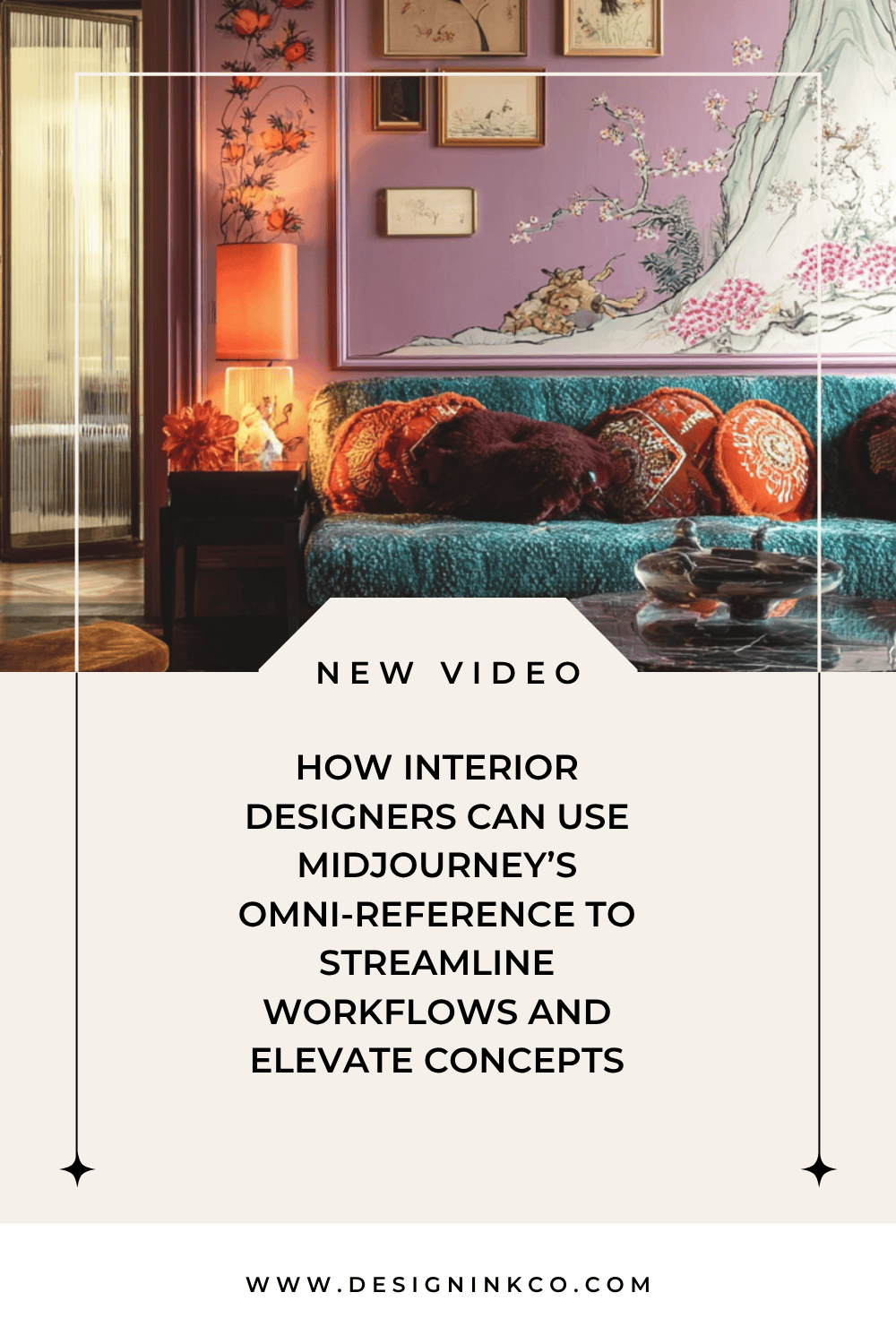
TL/DR:
In the ever-evolving world of design, time is your most valuable asset.
Whether you're crafting a pitch-perfect mood board, building a portfolio, or delivering visual concepts to clients, rendering ideas quickly and consistently can feel like an uphill battle. Photoshop is cumbersome, 3D tools require technical skill, and hand-sketching leaves too much open to interpretation.
Now, there's a solution that feels like magic—Midjourney’s new feature: Omni-Reference.
This tool is a breakthrough for interior design workflows, allowing you to instantly inject real-world objects, fabrics, textures, and even your own furniture into richly styled AI-generated scenes.
It reduces reliance on manual editing and opens vast new terrain for design exploration, visualization, and storytelling.
Here’s how to leverage Omni-Reference strategically and creatively to supercharge your design business.
What Is Omni-Reference and Why It Matters
Omni-Reference is a feature in Midjourney version 7 that allows you to insert a specific object or image into AI-generated artwork—seamlessly and repeatedly. Unlike older reference features that struggled with anything beyond faces or poses, Omni-Reference works exceptionally well with:
- Furniture and decor pieces
- Fabric swatches and material samples
- Scene references like mood, architecture, or color palette
- Custom brand visuals, such as logos or lifestyle photography
Simply drag an image or paste a URL into Midjourney’s prompt box. Then, describe the scene you envision—and watch it unfold.
This functionality introduces consistency at scale—a critical asset when you're managing multiple design presentations, client concepts, or storytelling content for social media. From mood boards to marketing, it’s a gift for any designer ready to build stronger systems.
How to Use Omni-Reference in Your Interior Design Workflow
Here’s a step-by-step setup to get going:
1. Use Midjourney Version 7.
2. Drag your image onto the prompt bar—this activates Omni-Reference.
3. Write a clear, descriptive prompt outlining the scene, material, or context.
4. Adjust Omni-Weight (the dial that balances object accuracy vs. scene style).
Understanding Omni-Weight
This is your control lever.
- 50–80: The scene has more creative freedom; your object integrates naturally.
- 150: A sweet spot for most interior applications—accurate, but still polished.
- 300+: Use cautiously—too much fidelity and you risk scale or texture distortions. Experiment to find your project-specific balance.
6 Powerful Use Cases for Interior Designers
1. Create Portfolio-Worthy Spaces with Real Products
Have a trademark chair or signature product?
Style it into multiple room types—modern, rustic, Scandinavian—and show its versatility across layouts.
Tip: Use a high-quality product image with a clean background.
Example Applications:- Turn catalog furniture into editorial lifestyle shots
- Use atmospheric settings tailored to your ideal client
- Reuse product visuals across newsletters, website sections, or landing pages
2. Build Consistent Mood Boards
Trying to test how a bold fabric or intricate tile pattern might look across different design ideas? Use a swatch as your Omni-Reference and let the AI explore curtain options, feature walls, or upholstery.
Pro tip: Vary your Omni-Weight to control the boldness of the material’s integration in each scene.
Why it matters:
- Strengthens storytelling in presentations
- Ensures all components, from color to texture, speak the same visual language
3. Replace Elements in Existing Interiors
You love the vibe of your reference image, but that rug or artwork isn't quite right. Instead of starting from scratch or jumping into Photoshop, use Omni-Reference to swap just one piece.
Insight from testing: Use ChatGPT to refine prompts when precise replacements are key. It excels at “surgical swaps,” while Midjourney is better for more artistic interpretation.
4. Explore Conceptual Styling & Lifestyle Shots
Need supplemental imagery for a client pitch or an Instagram carousel?
Insert smaller objects like candles, artwork, or textiles—then generate multiple angles to add visual depth. This adds realism and narrative to your visuals without requiring an in-person shoot.
Bonus: Because your source objects are branded or unique, the AI-produced results still feel exclusive to your studio.
5. Translate Color Palettes into Spatial Design
Trying to visualize how a brand color scheme plays out in a creative studio or retail setting?Upload your palette image, then prompt a scene description—like “modern design office with concrete floors and oversized cork mood board."
This workflow is great for:
- Presenting brand-aligned interiors
- Visualizing hospitality or retail concepts quickly
- Ensuring visual harmony from concept to execution
6. Animate Your Ideas for Deeper Engagement
While Midjourney’s animation functionality is still experimental (and can lean toward novelty), it offers creative outlets for:
- Social media storytelling
- Client walkthroughs
- Behind-the-scenes content showing process
By sequencing generated images or introducing soft elements like steam from a pot or character movement, you can build dynamic, layered videos from static concepts. And yes, you can even build a video reel starring a consistent character styled as your 'interior designer avatar.'
Pro Tips for Better Results
AI for interior designers is powerful—but like any tool, results depend on how well you use it. Here are some advanced tactics that help your output stand out:
Prompt Like a Pro
- Describe the full setting: furniture, materials, lighting, vibe, and angle
- Use tools like ChatGPT to refine unclear prompts or draw inspiration
- Avoid vague terms—be specific with style terms like “mid-century modern” or “Japandi”
Master the Midjourney Settings
- Stylize: Lower values (60–80) reduce creative drift
- Chaos: Raise to 10 for greater rendering variety
- File Format: Use JPEGs instead of PNGs to avoid rendering bugs from metadata
Embrace its Limits
Current limitations:
- Only one Omni-Reference at a time (no layering)
- Scale and orientation can be hard to control
- No zooming or “outpainting” once the object is placedDespite this, it still beats manual editing by a wide margin.
Why Omni-Reference is a Game-Changer
Implementing Omni-Reference into your systems for interior designers doesn't just save time—it elevates your ability to pitch, iterate, and express ideas at any stage of the process.
Whether you're prototyping concepts, styling content, or boosting brand visuals, this tool gives you the agility of a full creative team—without the overhead.
It’s accessible, intuitive (once you test a few weight ranges), and powerful enough to transform your entire visual workflow.For designers committed to thoughtful systems, Omni-Reference is more than an AI feature—it’s a strategic asset.
For a Deeper Dive…Want to see real examples, tested approaches, and animated works in action?
Watch the full video here:
Unlock the full potential of Midjourney for your interiors—and start working smarter, not just faster.

Hi 👋🏽 I’m Joanne!
I’m an interior designer, content creator, educator, and business coach. After studying Economics and Education at uni, the design world beckoned, drawing me to Christie’s in London, where I completed post-grad studies in art & design, and then to Hong Kong, where I founded Eclectic Cool, a design firm and design store. Eclectic Cool represented international brands such as Gubi, &tradition, HAY, Armadillo Rugs & Dinosaur Designs to name a few. My work and store have been featured in Monocle, Conde Nast Traveller, Elle Decor, Expat Living, Cathay Pacific inflight magazines, South China Morning Post, and the ABC (Australia) network and more. I live between on the south coast of Australia and Hong Kong with my husband and cavoodle. I’m the mum of three adult children.
Don’t forget to grab the free stuff! For Interior Designers!
Want a free investment guide you can use in your interior design business?
This 24-page investment guide, made in Canva, is yours to customize with your logo and branding. Fill out the form to download now!
You might like…